
Omarchy 4.5 is out as a release candidate (RC), the test version that comes before the final release. The release notes for v4.5.0-rc1 call it the first feature release since Quattro, the 4.0 series. Several of the changes are for people coming from a Mac or Windows: windows you can drag around, titlebars with minimize and close buttons, a dock, and the Windows screenshot shortcut.
Our video, embedded above, shows each feature; this guide adds the keys, the menu paths, and details the video left out. The steps match Omarchy 4.5.0rc1-1, the first release candidate. Where RC1 does something different from its release notes, the section says so.
Most shortcuts start with the Super key, which is the Windows key on a PC keyboard. The Omarchy menu opens with super space , and typing an entry’s name, such as Language, jumps straight to it. If the keys are new to you, start with the six Omarchy shortcuts to learn first, and for how the pieces fit together, see how Omarchy is built.
Themes play an intro clip, and wallpapers can be videos
Switching themes now plays a short intro clip with no sound, then lands on the theme’s wallpaper. The Matte Black intro is a woodcut ship on a burning sea, and Ristretto’s is a set of color stripes that bend into curves. Each clip ends on the theme’s first wallpaper, so nothing jumps when the video stops. The same clip plays when you log in.
Open the theme picker with super shift ctrl space (or Style, Theme in the Omarchy menu), move with the arrow keys, and press enter . From Enter to the finished wallpaper takes about 7 to 9 seconds. Choosing another theme while an intro plays cuts it short.
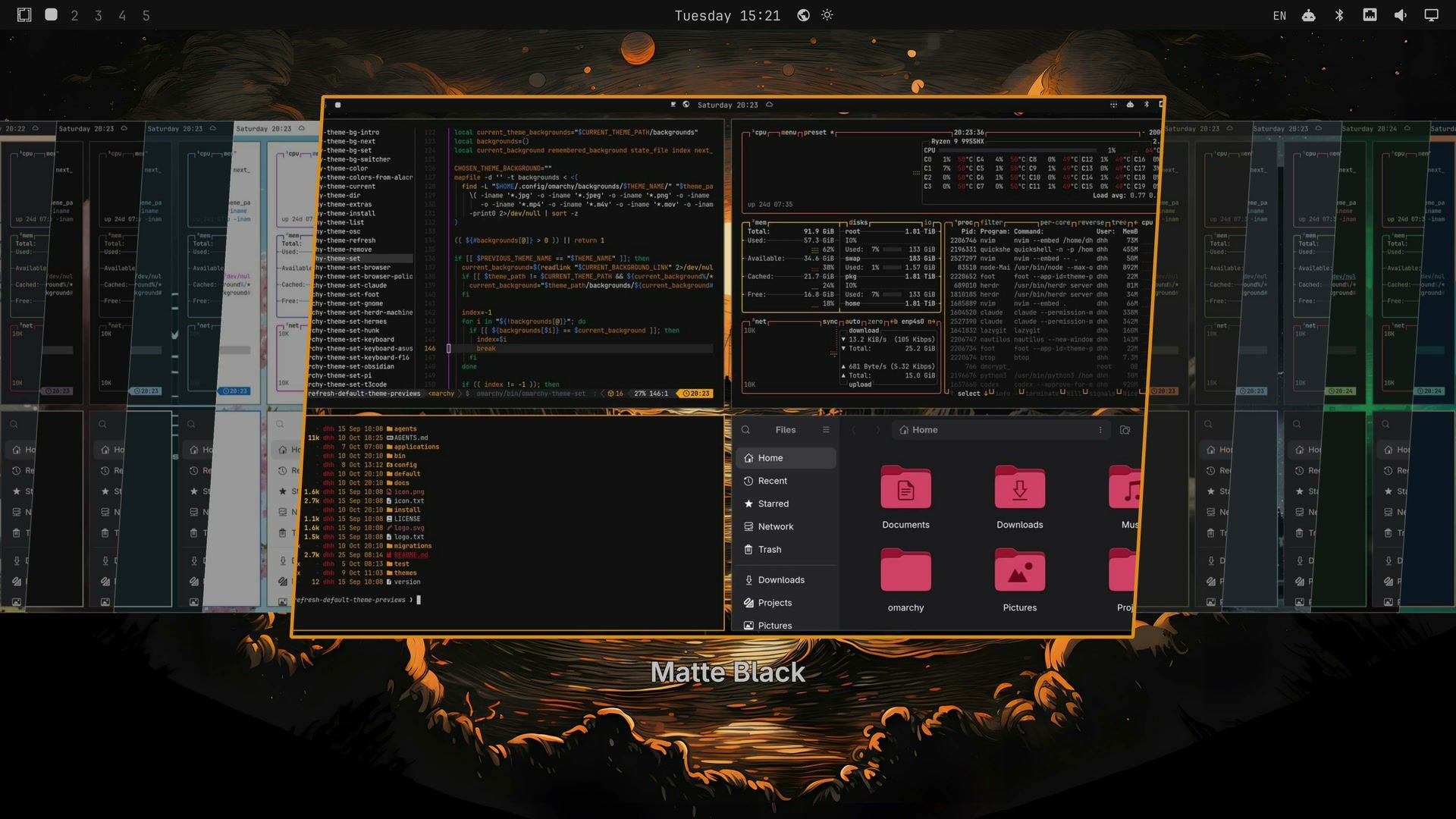
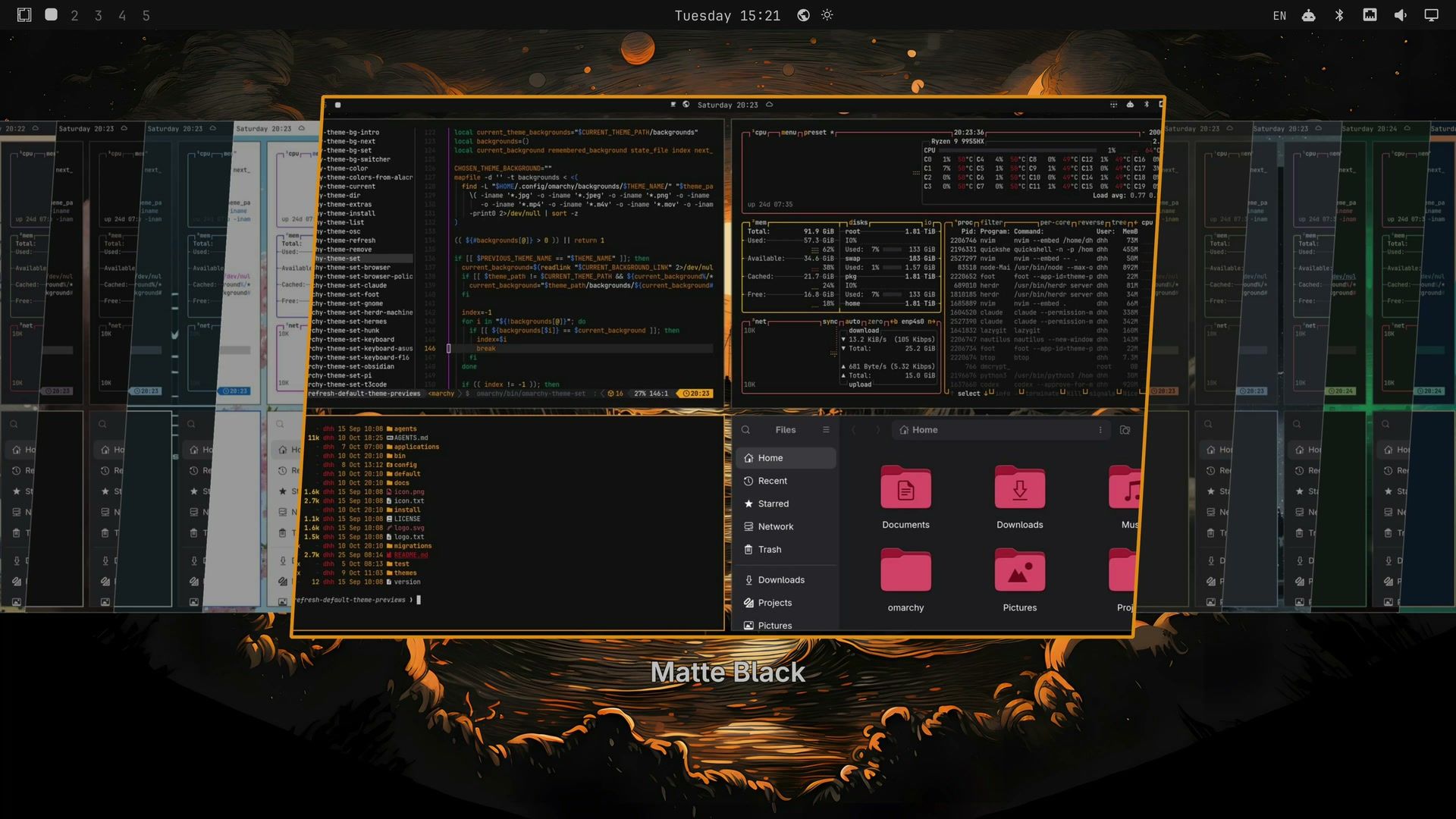
The release candidate ships 20 intro clips across 17 themes; Gruvbox, Kanagawa, Lupine, Solitude, Starship, and Tokyo Night have none. An intro plays only while the theme is on the wallpaper that the clip belongs to. If you pick the theme you are already on, Omarchy moves to its next wallpaper instead, and a later switch back to that theme plays no intro until you set the first wallpaper again.
Tokyo Night gets a new first wallpaper, Liftoff, a rocket launch at sunset that came from a community theme of the same name. Open the wallpaper picker with super ctrl space (Style, Background in the menu) and it is the first card. A new install that picks Tokyo Night should start on it, since it sorts first.
Add a video wallpaper
In the Omarchy menu, open Install, Style, Background. It creates a wallpaper folder for the current theme, ~/.config/omarchy/backgrounds/<theme>/, and opens it in Files. Copy a video into that folder, then open the wallpaper picker. The video shows up as a card with a still preview, after the theme’s own wallpapers.
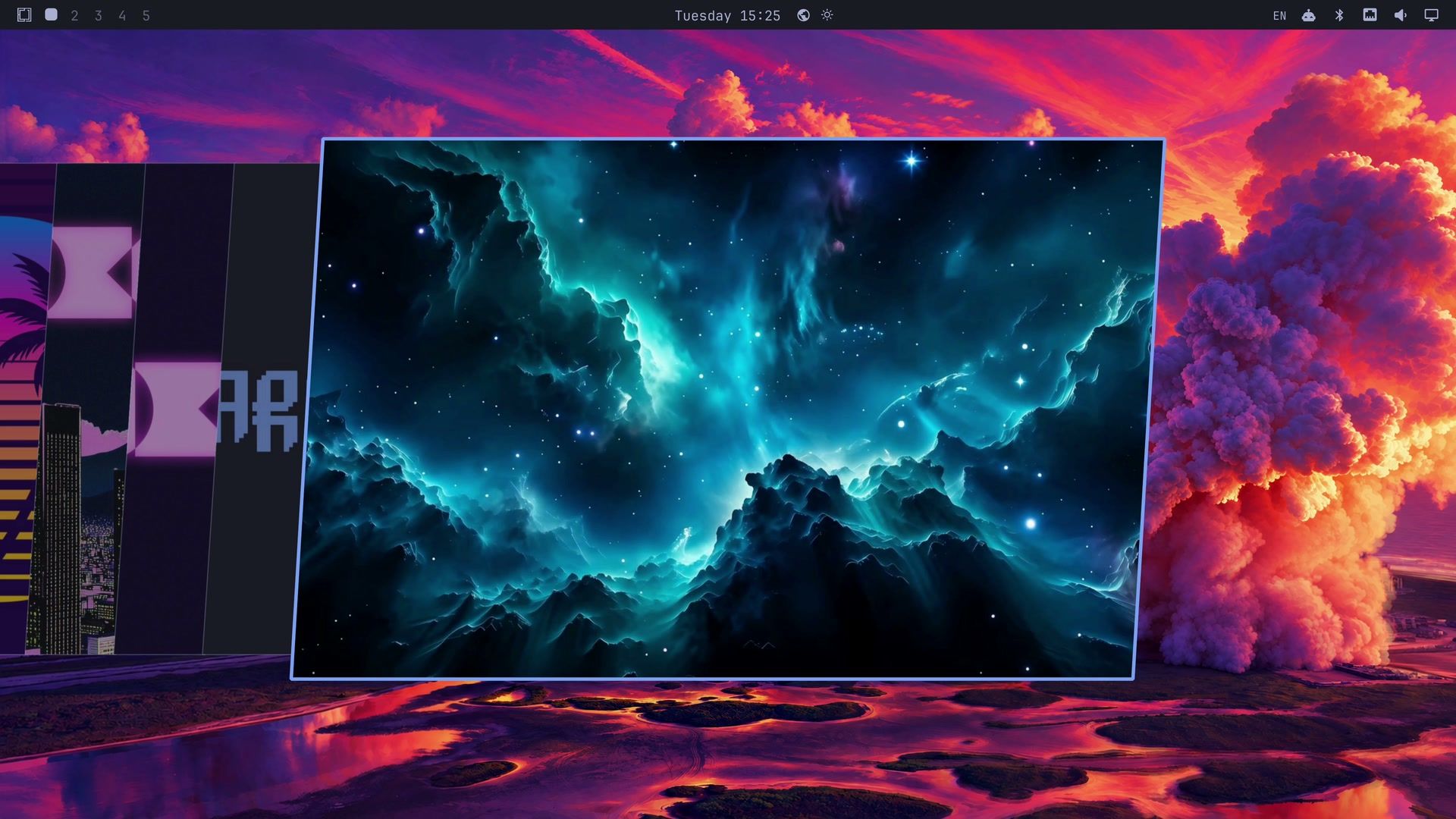
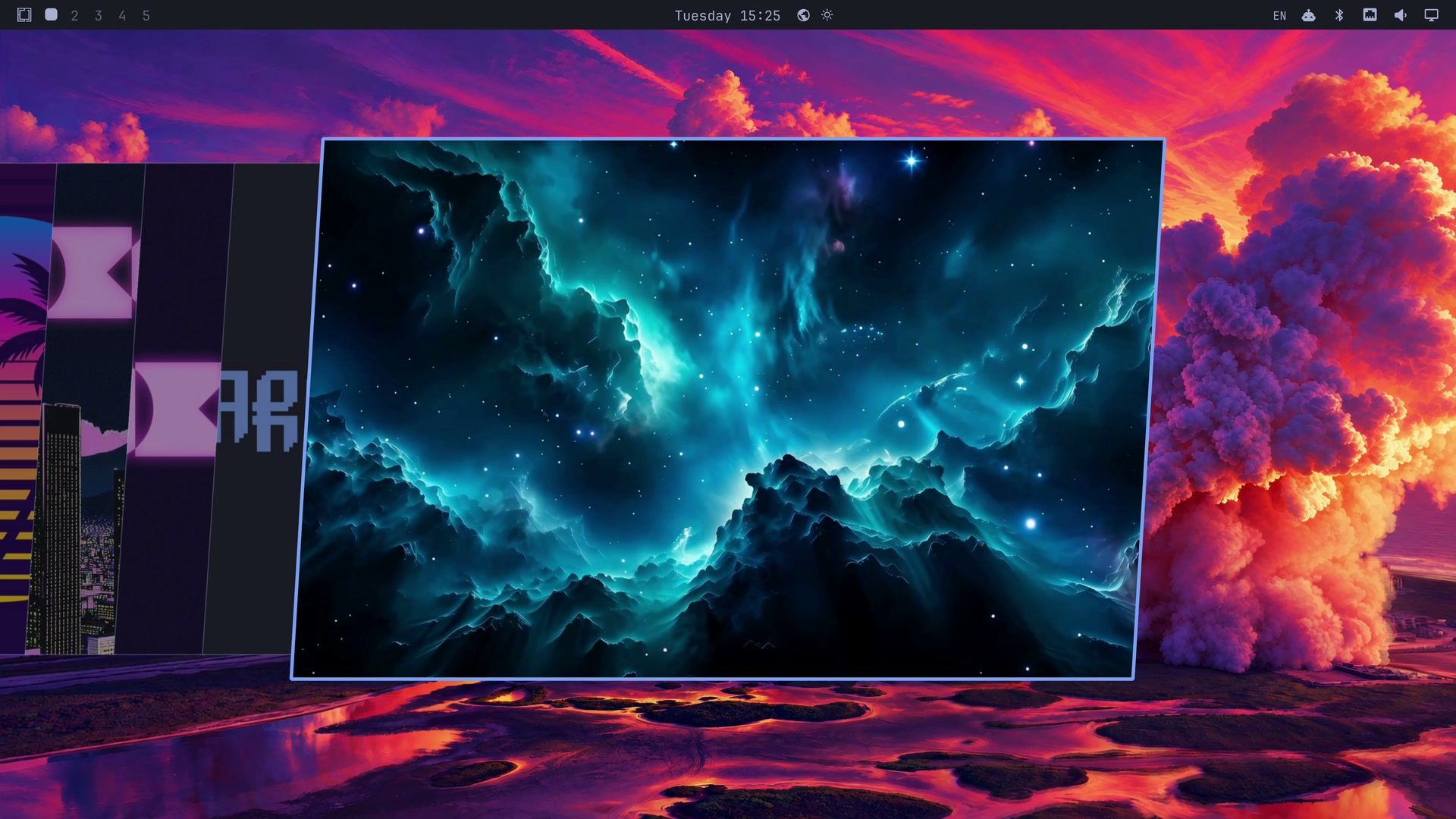
The picker takes mp4, m4v, mov, webm, mkv, and avi files. A video wallpaper plays muted, fills the screen, and loops for as long as it is the wallpaper. On our Intel N100 mini PC (a GMKtec NucBox G2), a looping 4K video wallpaper used about 8 percent of the processor, against 0.2 percent for a still picture. The first video you pick after logging in can show about a second of black screen before it starts.
Turn the intros off
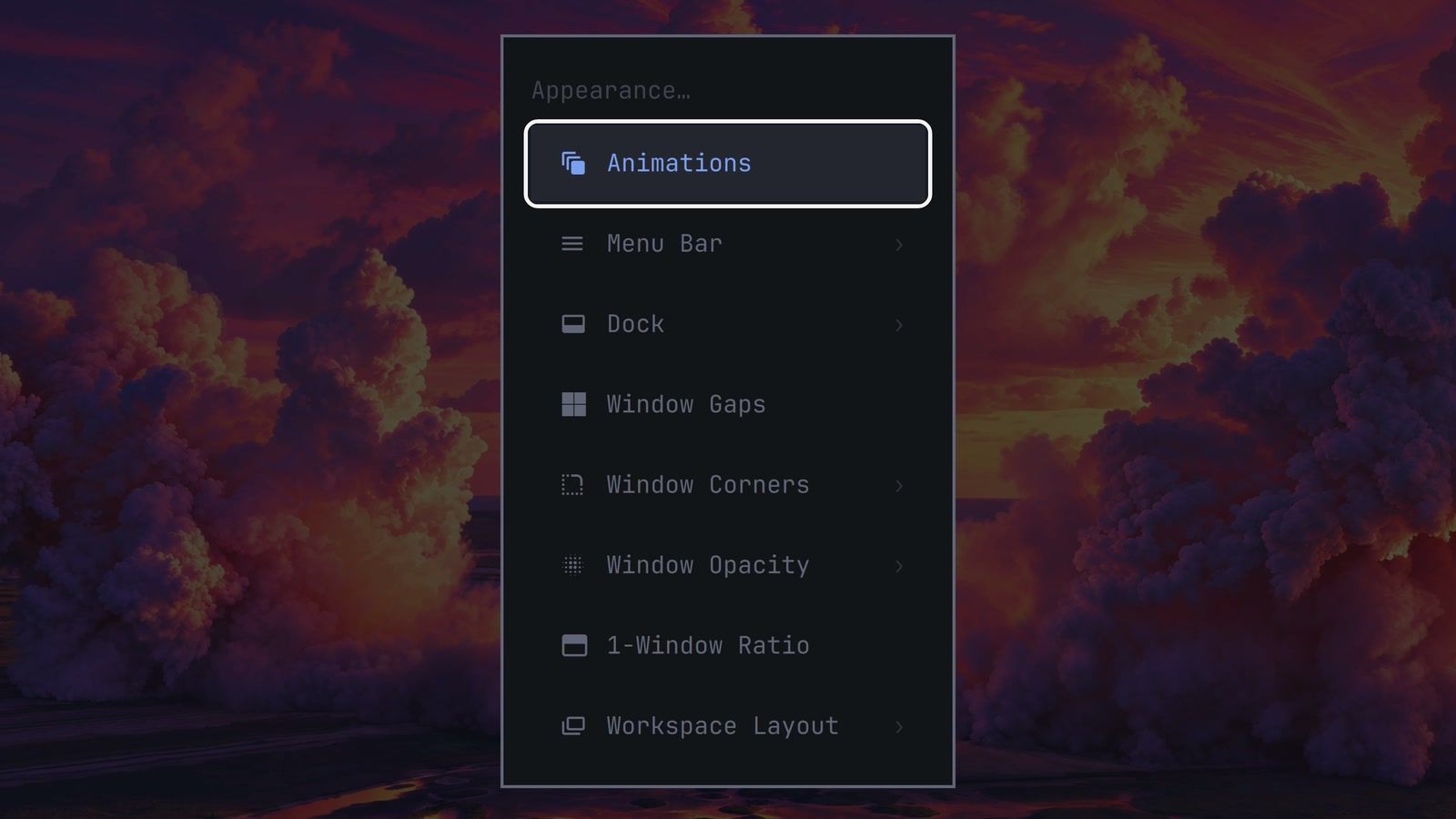
Open the Omarchy menu, then Trigger, Appearance, Animations. Appearance is a new menu that holds the settings for how the desktop looks. The Animations row turns off the theme intros and the window animations together, and a notification says “Animations disabled.” The row has no on or off mark, so the notification is how you know which way it went. Pick it again to turn animations back on, or run omarchy toggle animations on.
With animations off, a theme switch is a straight cut to the wallpaper. New installs in a virtual machine start with animations off, since the processor has to draw every frame there. To skip only the intros and keep the other animations, run omarchy theme bg intro disable in a terminal (and enable to bring them back). That one has no menu entry.
Super L turns a workspace into floating windows with a dock
Omarchy still tiles by default: each new window takes a slice of the screen, and nothing overlaps. A workspace is like a virtual desktop, and super l now cycles it through three layouts. The first press turns on scrolling, where windows line up as columns on a strip that runs past the edge of the screen. The second press makes them floating windows, each with a titlebar in the theme’s colors, and the dock appears along the bottom. The third press tiles them again. super alt l goes through the layouts the other way.
The top bar shows the current workspace’s layout with a shape: a square for tiling, a circle for scrolling, and a triangle for floating. Clicking that shape also cycles the layout. Each workspace keeps its own layout, so switching one to floating leaves the others alone.
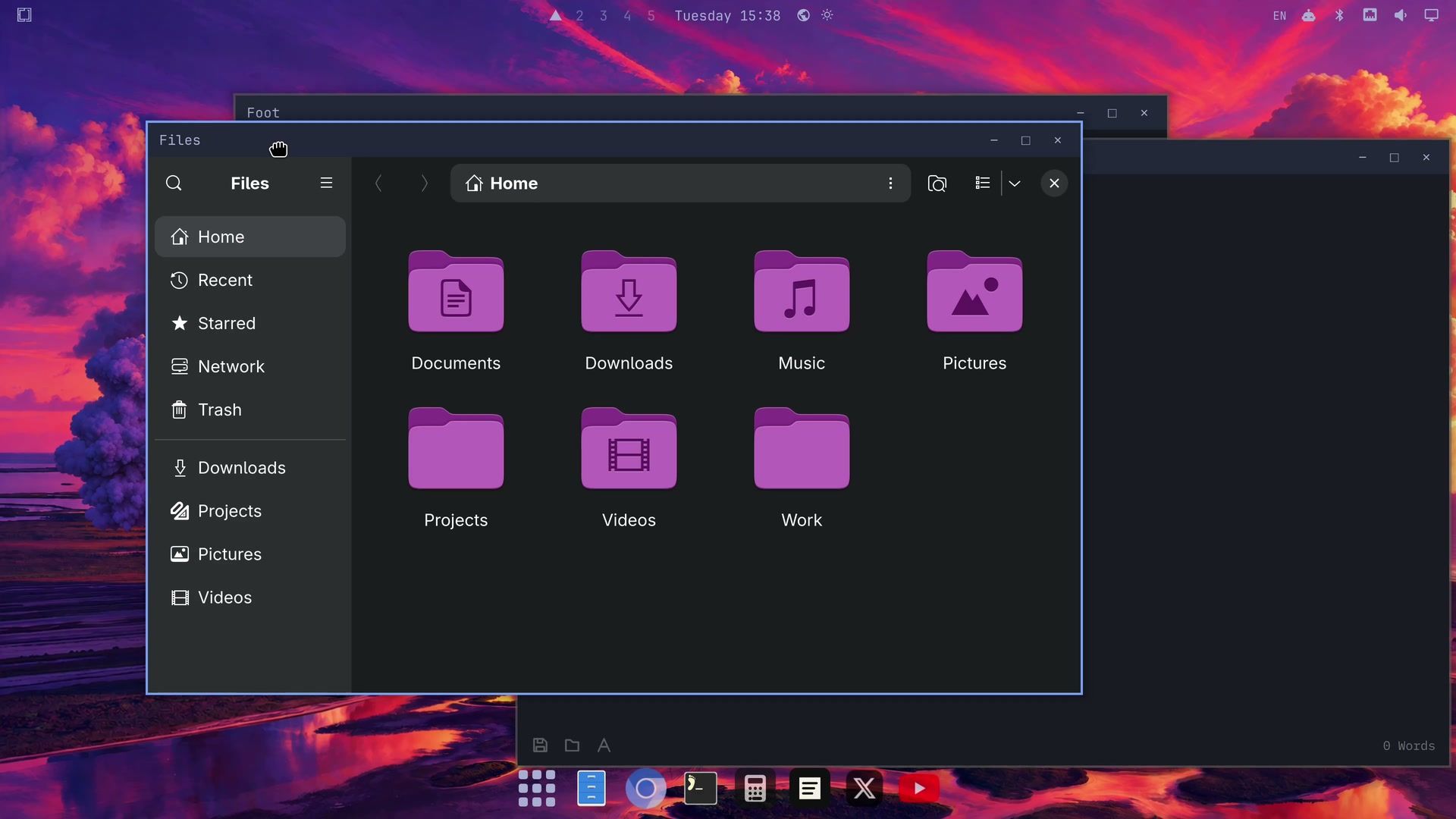
Drag a window by its titlebar to move it. The three buttons on the right are minimize, maximize, and close. Double-clicking a titlebar fills the screen below the top bar, with the titlebar still in place, and double-clicking again puts the window back where it was. A new window opened on a floating workspace floats from the start, with its own titlebar.
Use the dock and the app grid
The dock holds your pinned apps and every app that is running. The default pins are Files, Chromium, the terminal, Omacalc, Omawrite, X, and YouTube. Pinned apps that are not running look slightly faded. Click an icon to open the app, or to switch to its window if it is already running.
The first button on the dock, a grid of nine dots, opens a grid of every app. super alt space opens the same grid. Type to filter it and use the arrow keys to move. esc closes a grid opened from the dock; if you opened it with Super Alt Space, press that again to close it. To pin an app, drag it from the grid onto the dock. Drag icons along the dock to reorder them.
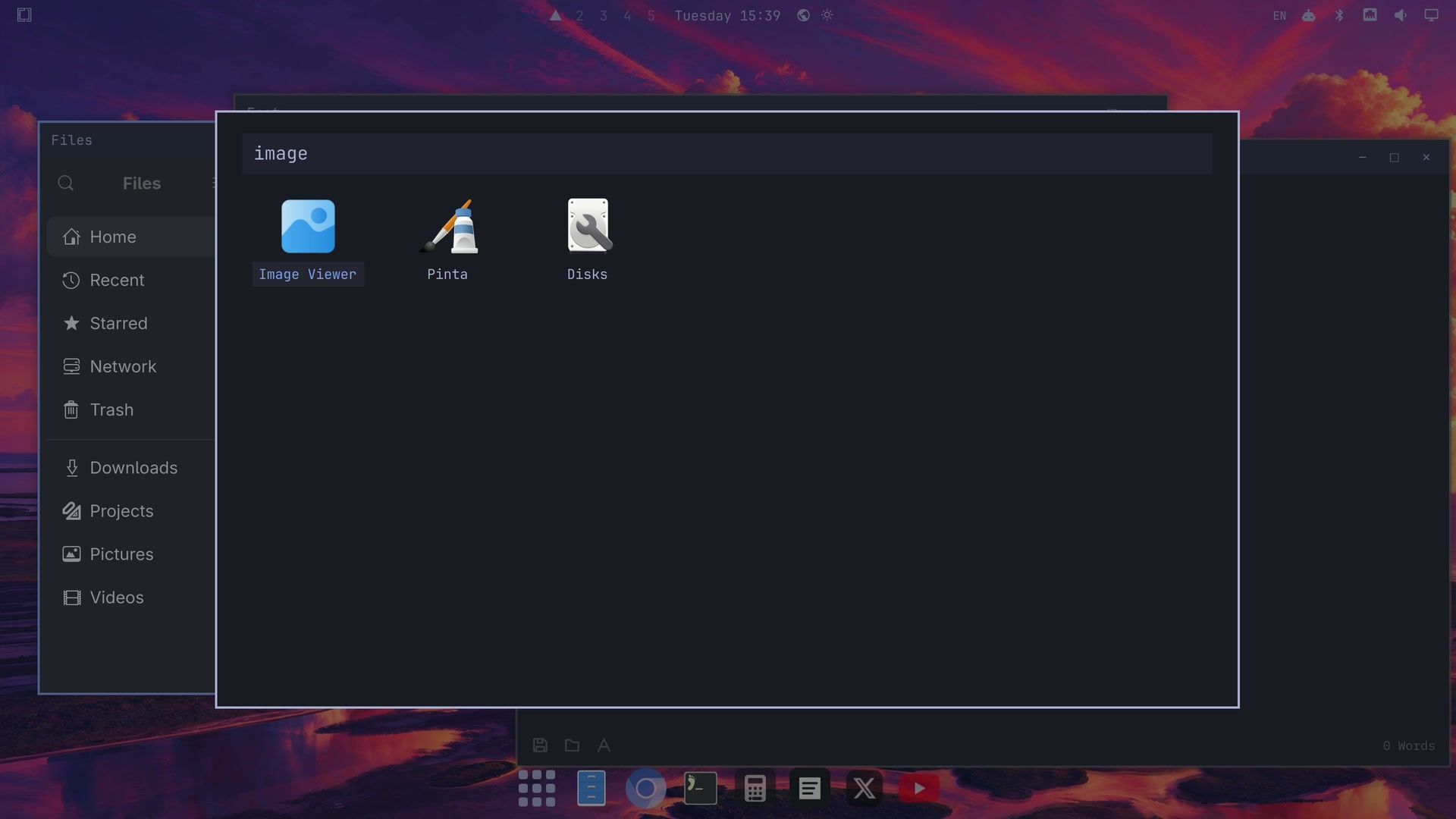
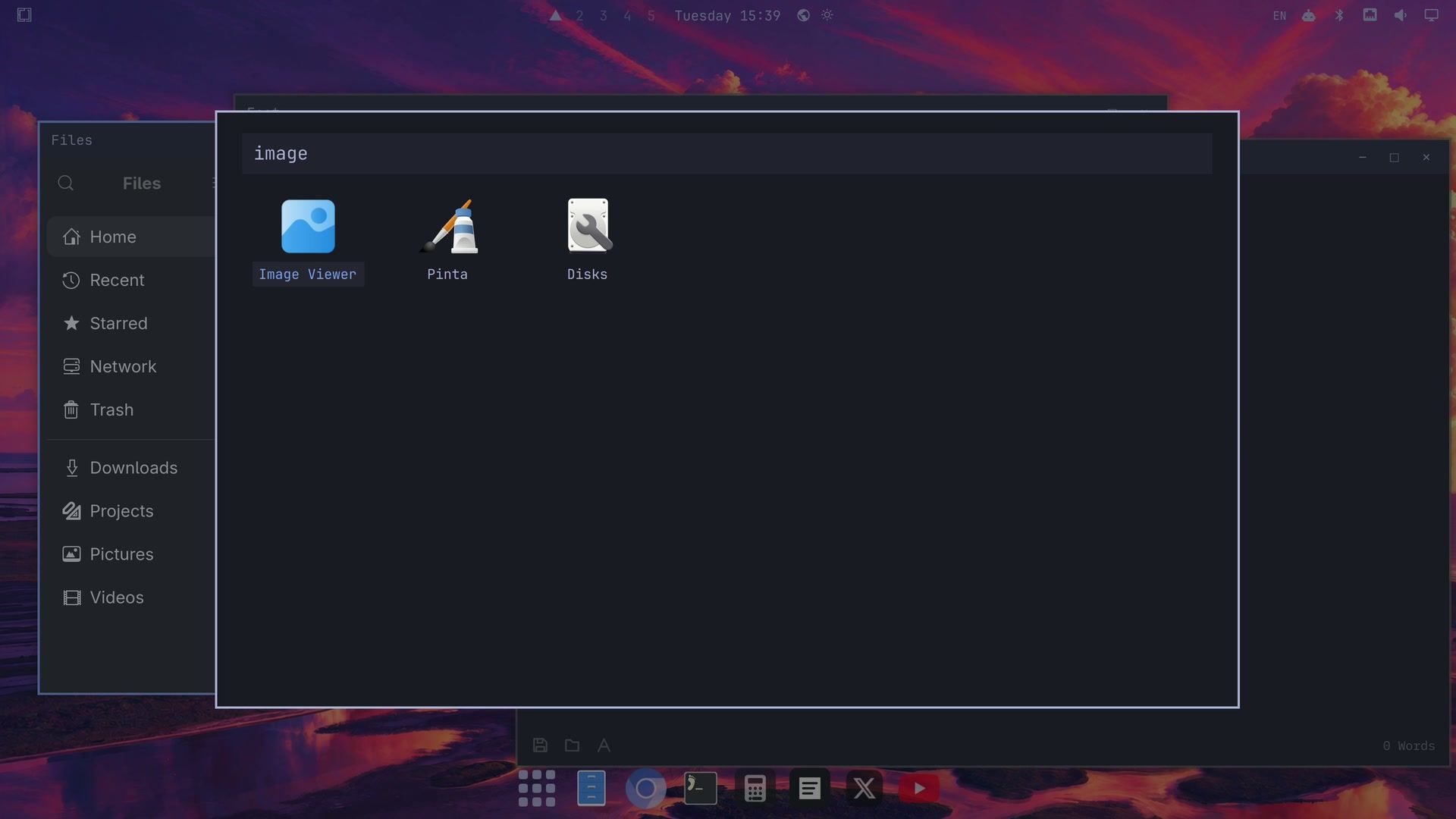
Right-click a running app in the dock for New Window, Quit, and either Keep in Dock (for an app that is not pinned) or Remove from Dock. Right-click the apps button to move the dock to the top, bottom, left, or right edge, or to turn on Auto-hide, which tucks the dock away until the pointer reaches its edge. The same settings are in the Omarchy menu under Trigger, Appearance, Dock, and in a terminal as omarchy dock position left and omarchy dock autohide on.
super m minimizes the window you are in, and the titlebar’s minimize button does the same. The window waits in the dock until you click its icon. Minimizing works only on floating workspaces; on a tiled one, Super M does nothing. With one window per app, a click on the icon brings the window back. With two windows of the same app open, clicking the icon did not always restore the minimized one on RC1. The dock goes away on a tiled workspace, so bring minimized windows back before you switch the workspace to tiling.
Make floating the default
Open the Omarchy menu, then Trigger, Appearance, Workspace Layout. The list, “Default Workspace Layout,” has Tiling, Scrolling, and Floating. Pick Floating, and new workspaces open with floating windows and the dock. Workspaces that already have windows keep the layout they had, so nothing you are working on gets rearranged. The terminal version is omarchy-hyprland-workspace-layout-default floating. Before this release, the Familiar Desktop plugin added a dock and window buttons to Omarchy 4.0.4, but its author stopped developing it in October 2026 and no longer recommends new installs.
Each monitor gets its own workspaces
With a second monitor plugged in, super 2 switches to workspace two only on the screen you are using, and each screen’s bar lists only its own workspaces. ctrl alt tab moves the focus to the next monitor.
To move a window to the next screen, press super shift ctrl (or another arrow key for the direction), and the focus follows it. super shift alt moves the whole workspace instead. If you unplug a monitor, its workspaces move to the screen that is left, and they go back when you plug it in again.
Super Shift S takes a screenshot
The screenshot shortcut is now the one Windows uses, super shift s , which helps on laptops that hide Print Screen behind a function key and on Mac keyboards, which have none. Print Screen still works and opens the same tool. Drag across an area, or click a window to capture it; esc cancels.
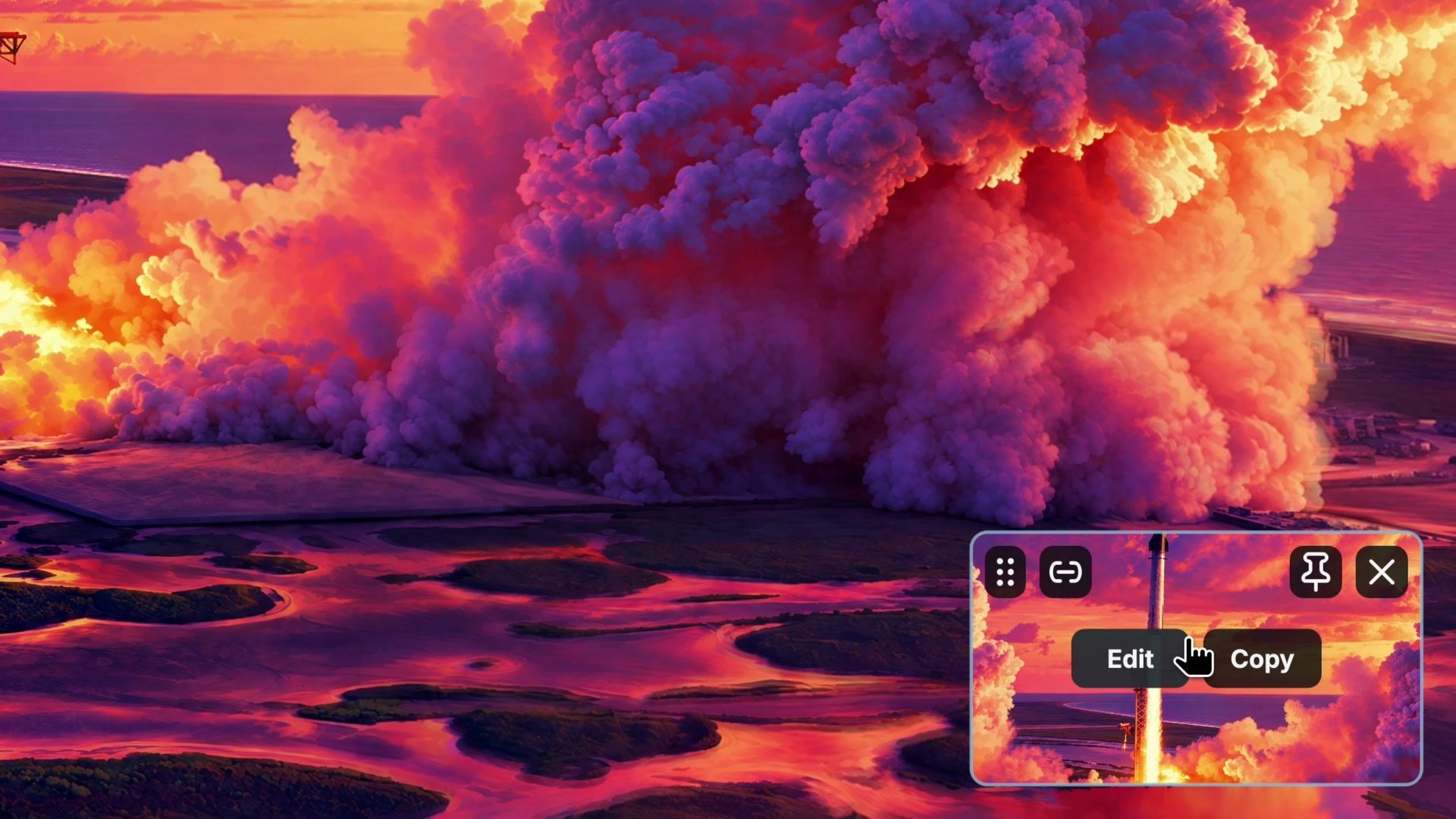
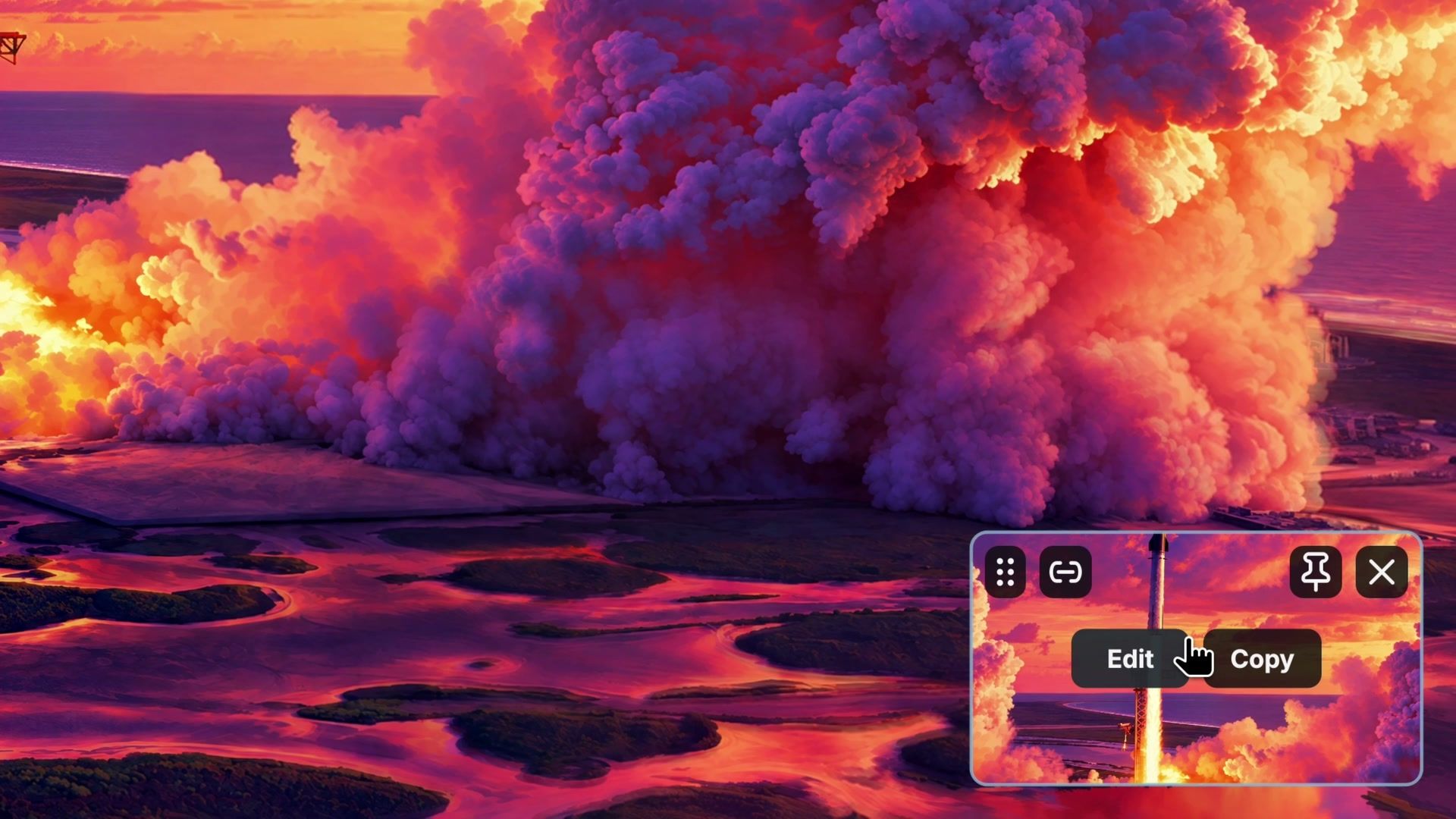
The new screenshot tool, Omasnap, copies the capture to the clipboard and shows a preview card in the corner for about 10 seconds, with Edit and Copy buttons. It does not drop a file into your Pictures folder on its own. Paste the image where you want it, or use the preview’s buttons.
Notifications stack by app and can be snoozed
New cards arrive in the top right corner, newest on top, with one stack per app. Hover over a stack to fan it out. Each card gets a close button on hover, and the next card moves up under the pointer when you close one.
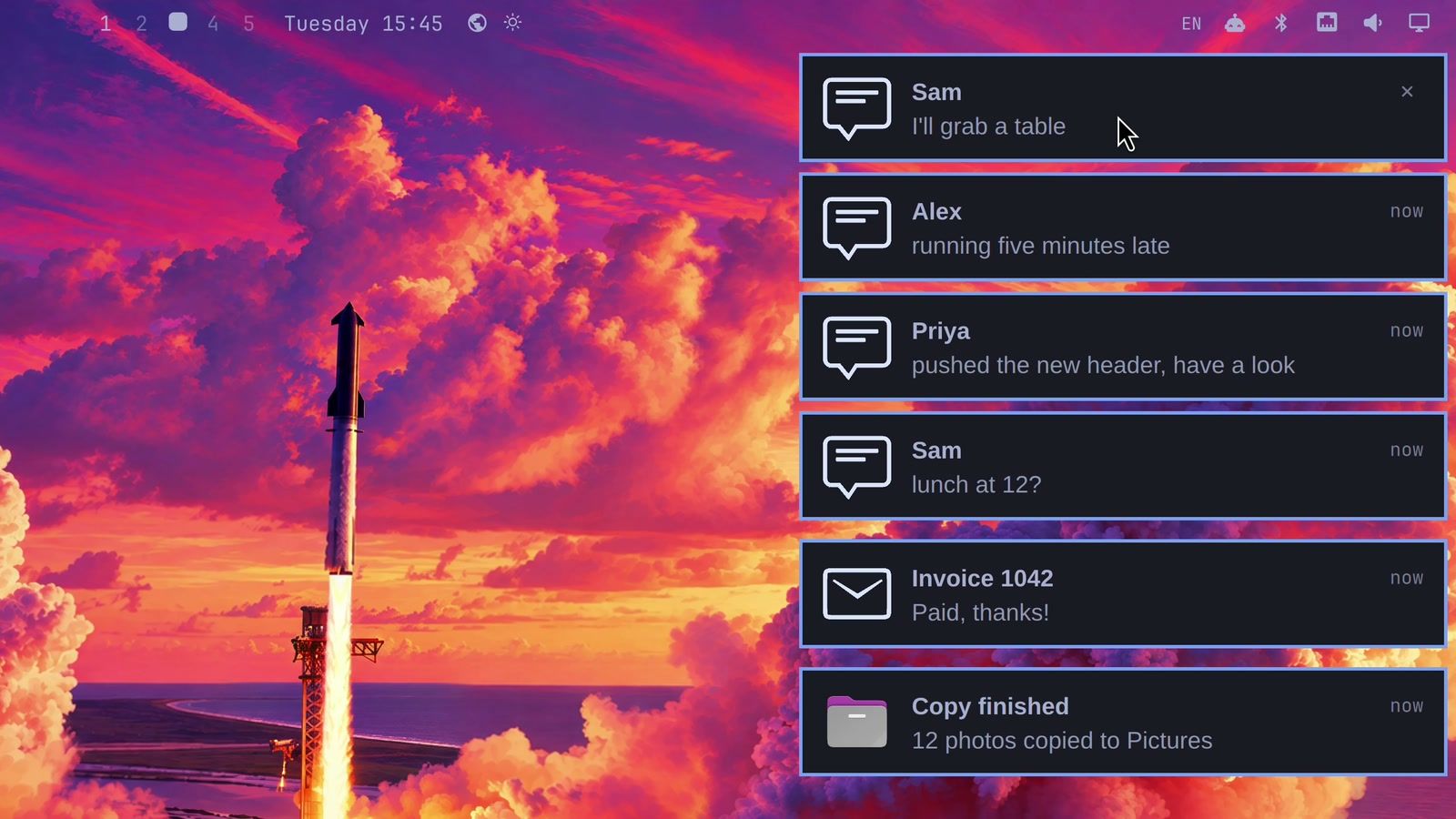
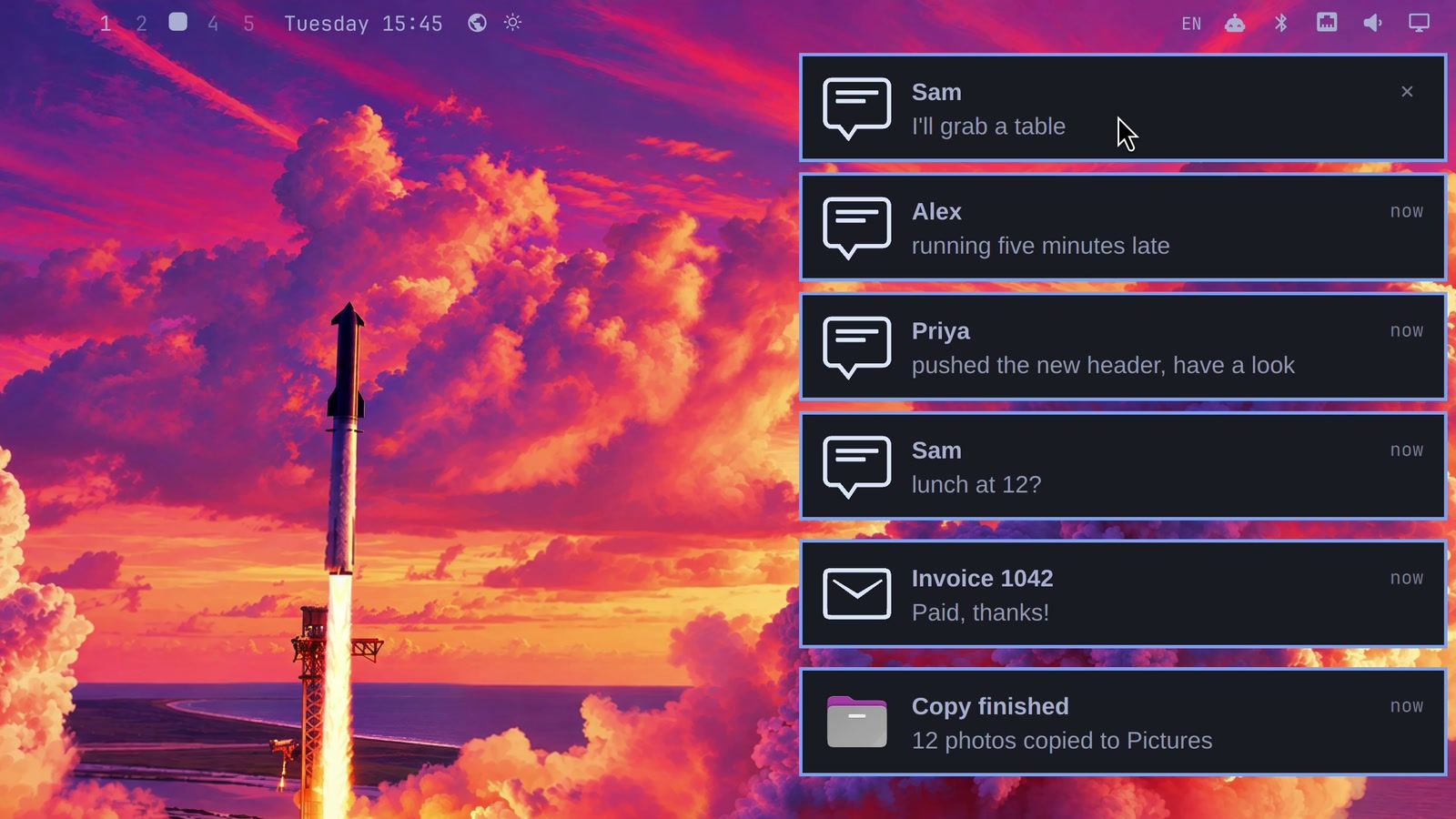
Cards show buttons that match what is in them. A chat card shows the app’s own buttons, such as Reply and Mark as read. A card with a link offers Open link. A sign-in code gets a Copy code button, which turns into a check mark once the code is on the clipboard, and a phone number gets Copy number.
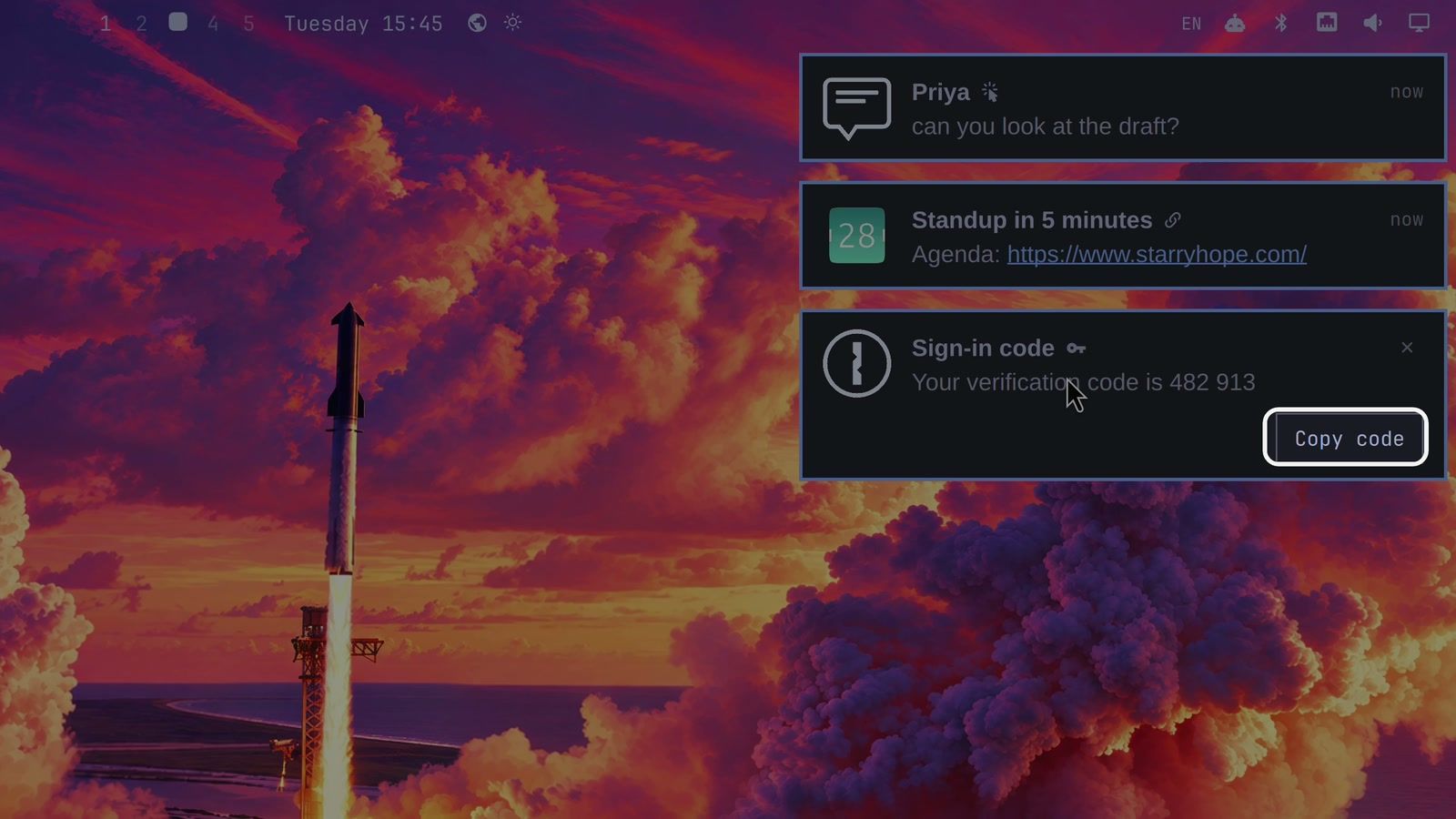
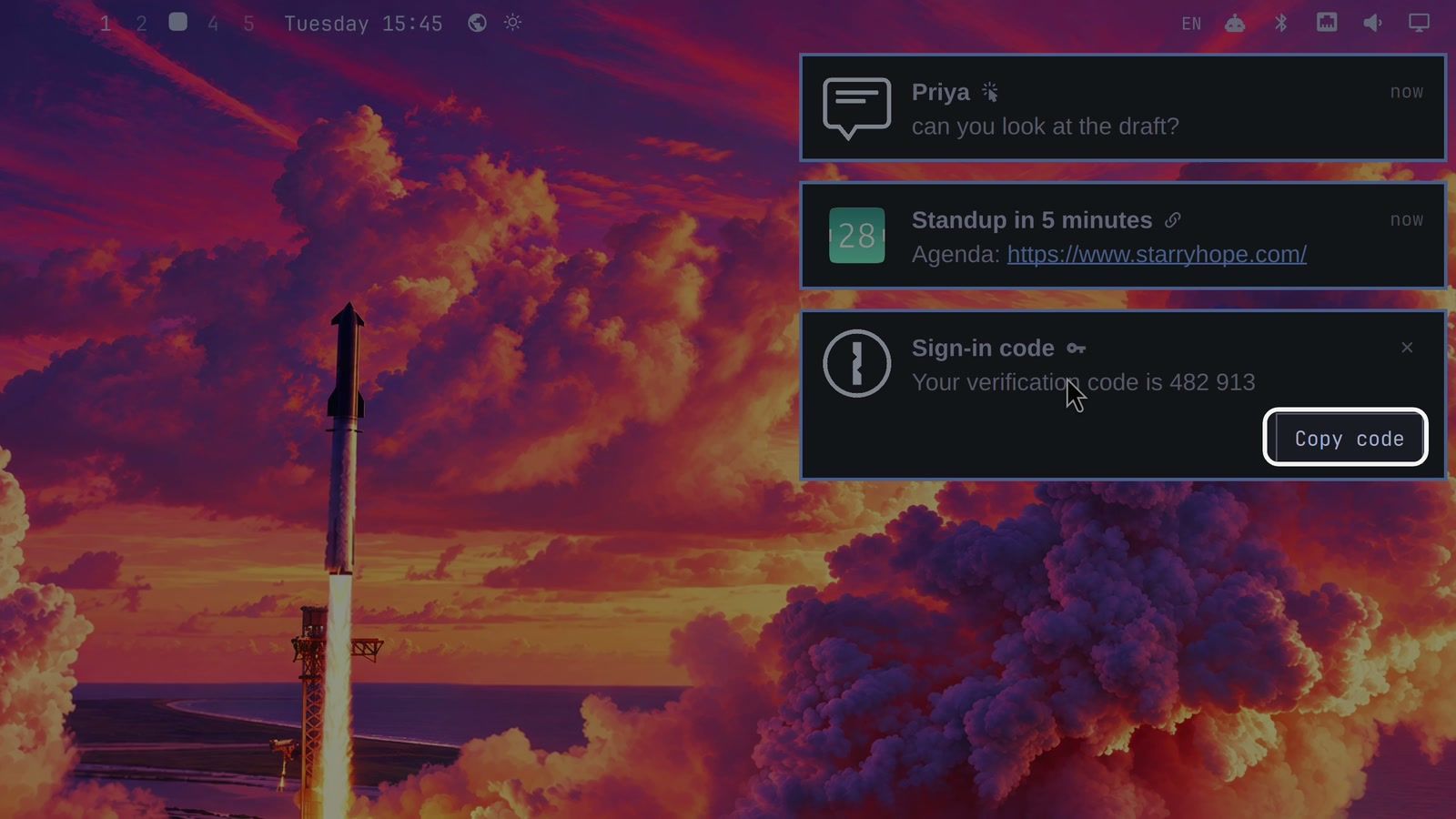
Right-click a card to snooze that app for 30 minutes, an hour, 4 hours, or until tomorrow (8 a.m.), or to turn on Do Not Disturb. While an app is snoozed, a bell with a small z shows in the middle of the top bar. Cards follow the theme’s colors, and Solitude is the only theme that gives them rounded corners. The release notes also say identical notifications from one app collapse into one card, but on RC1 two identical notifications still showed as two cards.
Do Not Disturb and the history panel
Right-click the bell in the top bar to open the notifications panel. The bell is hidden unless an app is snoozed or Do Not Disturb is on; otherwise, hover the middle of the bar to find it. The panel lists recent notifications, snoozed apps (each with a button to resume it), and a history of the last 24 hours. Sign-in codes show there as “Code hidden.”
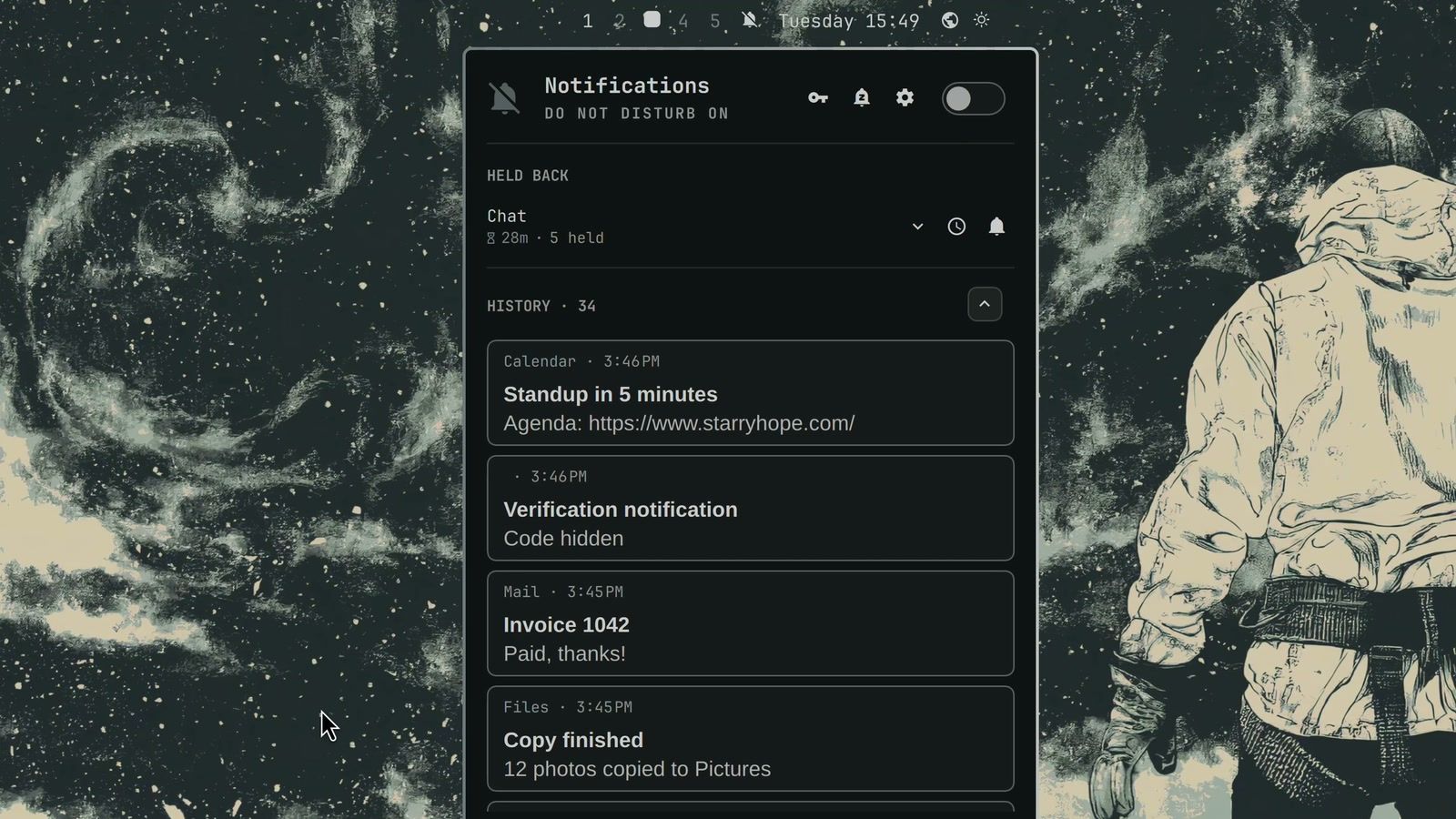
The switch at the top of the panel stays on while notifications come through; turn it off for Do Not Disturb, or press super ctrl , to toggle Do Not Disturb from the keyboard. Turning Do Not Disturb on clears the cards on screen, and notifications that arrive while it is on wait under Held Back, grouped by app, with a button to resume them all. Sign-in codes still come through, so a login does not have to wait. super shift alt , puts your last few notifications back on screen as cards.
A drop-down console opens your coding agent
super ` (the backtick key, under Escape) drops a terminal down over the desktop and dims everything behind it. The first time it opens, the console starts your default coding agent, an AI helper that works in a terminal, such as Claude Code. The same keys hide the console again, and the agent keeps running. Press them over another app, and the console comes back with the agent where you left it. super s opens the same console, and super shift ` moves the window you are in to it.
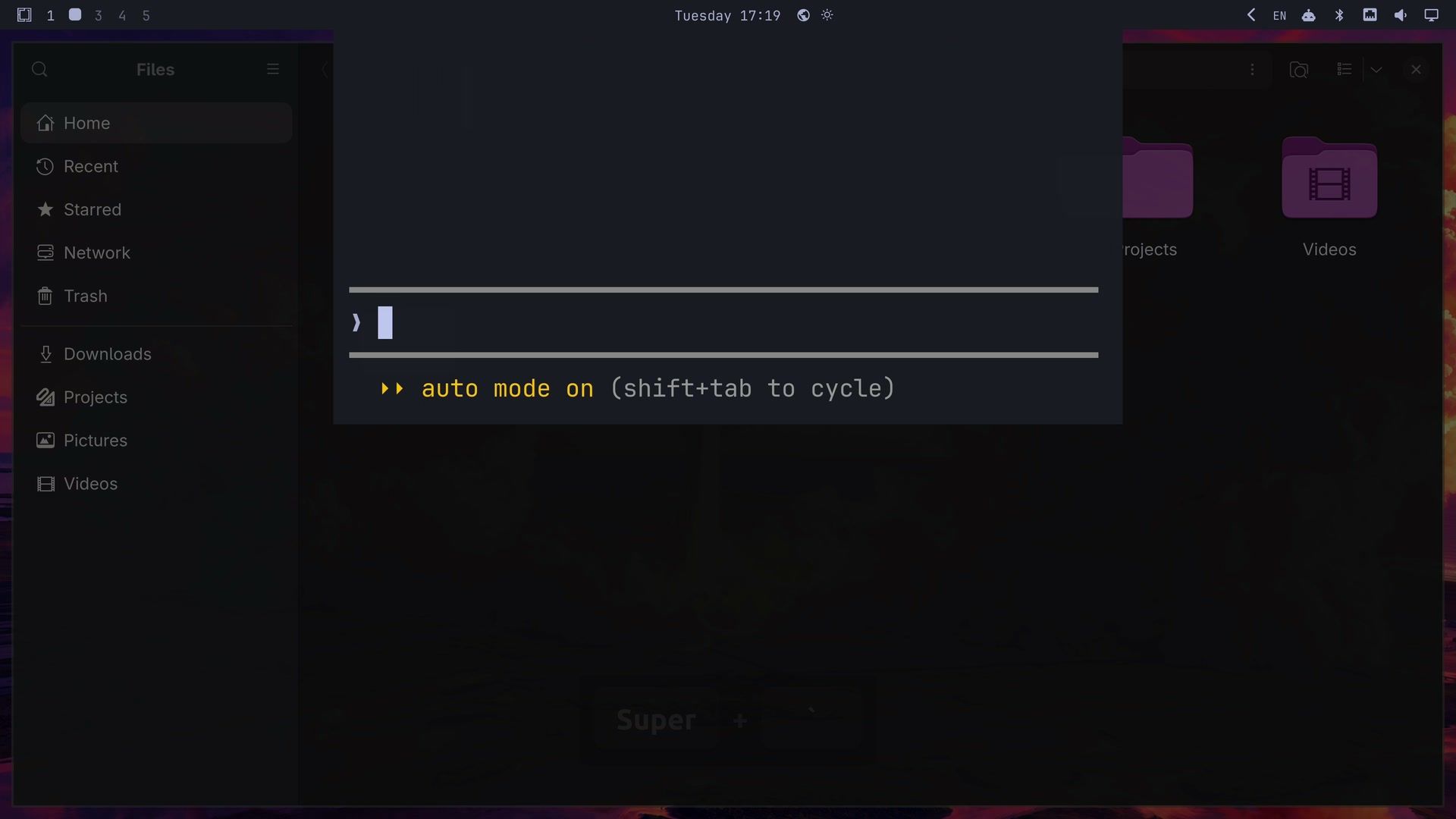
Without a default agent, the console opens on a dimmed, empty desktop with no message. Pick one first in the Omarchy menu under Setup, Defaults, Agent. The list has 15 agents, including Antigravity, Claude, Codex, Copilot, Crush, Cursor CLI, Grok, Hermes, and Kimi. Omarchy installs the agent if it is missing.
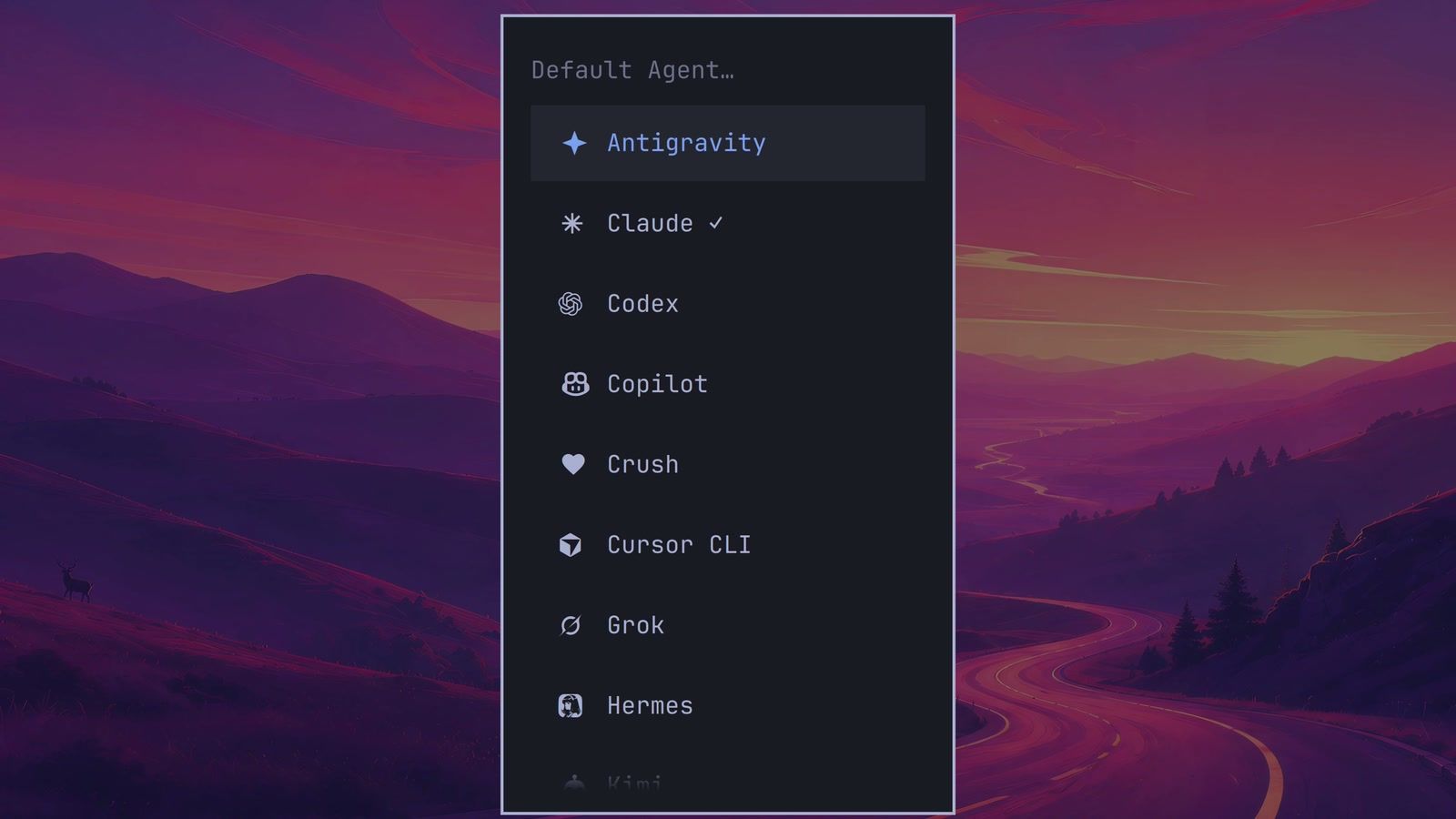
Picking Claude there also adds the Claude in Chrome extension to Chromium, the default browser, and to Chrome, Brave, and Microsoft Edge. It asks for your password to do that; if you cancel the prompt, Omarchy skips the extension without saying so. The next time Chromium starts, it installs the extension and opens a claude.ai tab to sign in.
The Claude desktop app and the agents panel
The Claude desktop app is new under Install, AI, Claude Desktop. It installs Anthropic’s Linux package, about 600 MB once installed, and opens on a “Get started” screen that leads to sign-in. After sign-in it can open in Code mode, and the regular chat is under Go, Claude in the app menu. The app keeps its own look rather than following the Omarchy theme, and closing its window leaves it running with an icon in the top bar’s tray.
The agents panel, the robot icon in the top bar, holds your Claude Code, Codex, and Grok subscriptions. You can sign in to more than one Claude or Codex account and pick which one the agent uses. With no accounts signed in, the panel opens on an “Add an account” screen with a tile for each.
Pick a dictation app
The same Defaults menu has Dictation, with Superwhisper and Voxtype, and it installs the one you choose. New installs start with Superwhisper selected. Voxtype runs on your own computer, so picking it first asks before it downloads a speech model of about 150 MB. Superwhisper is a proprietary app. Its Cloud mode needs a Superwhisper account and comes with a limited number of free words, and its settings window is where you download an offline model instead.
Both use the same keys: hold Right Alt or F9 and talk. super ctrl x toggles dictation on and off, if you would rather not hold a key.
The desktop now comes in 50 languages
In the Omarchy menu, go to Setup, Language and pick one of 50 languages, each listed in its own script. The terminal version is omarchy language <code>, for example omarchy language ja. The menus, the top bar, and Omarchy’s notifications switch in about five seconds, without logging out. The screen goes blank for a moment while the desktop restarts. Apps you open after the switch, such as Files, follow it. Danish was translated and checked first, and AI agents translated the other 48 languages, according to the pull request that added them; English is the 50th.
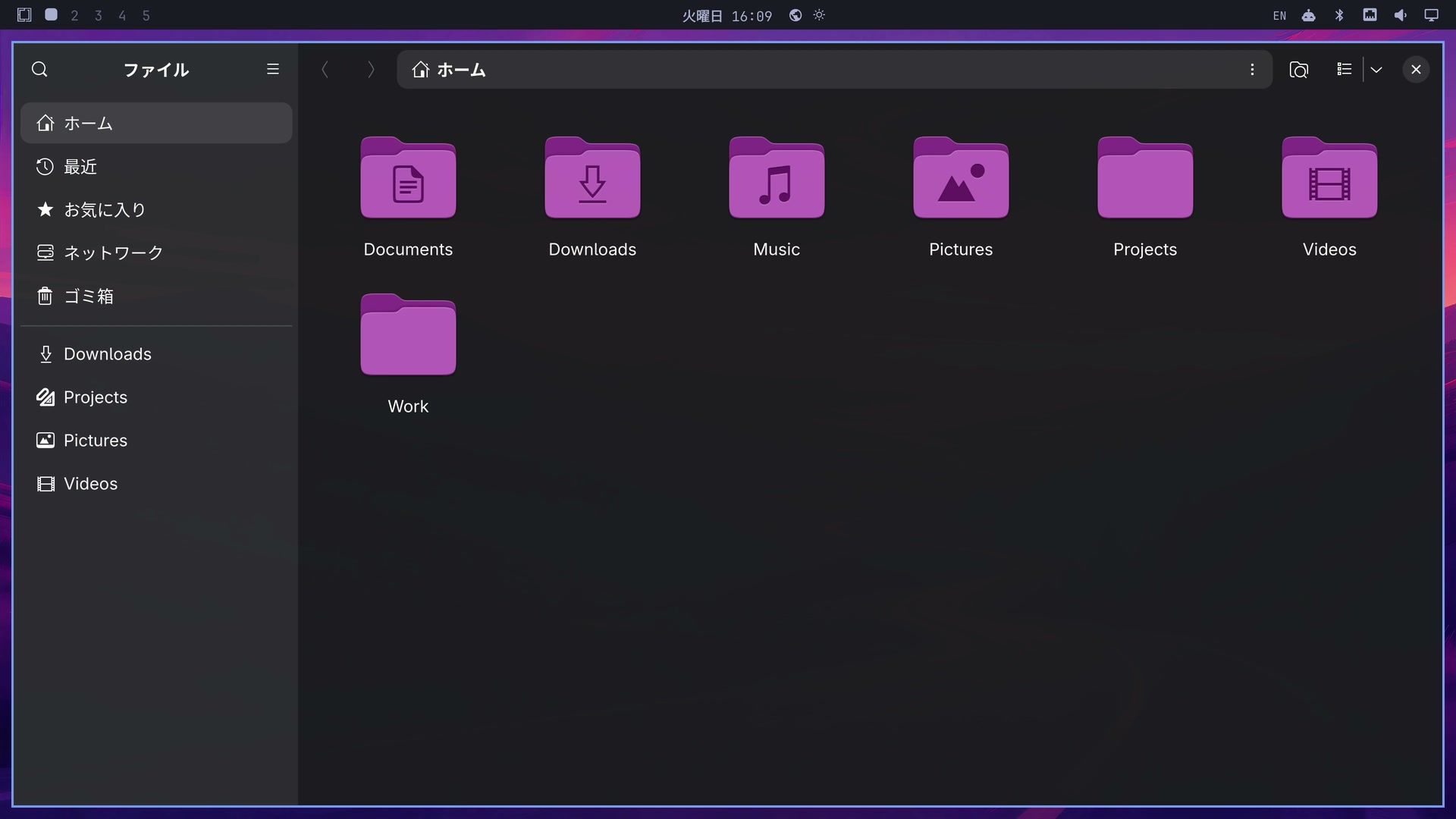
Right-to-left languages such as Arabic mirror the menus, pickers, and notifications; the top bar keeps its left-to-right layout. The release notes say the system language follows at your next login, but on RC1 the switch changes your desktop session only, so the login screen and the text console stay in English.
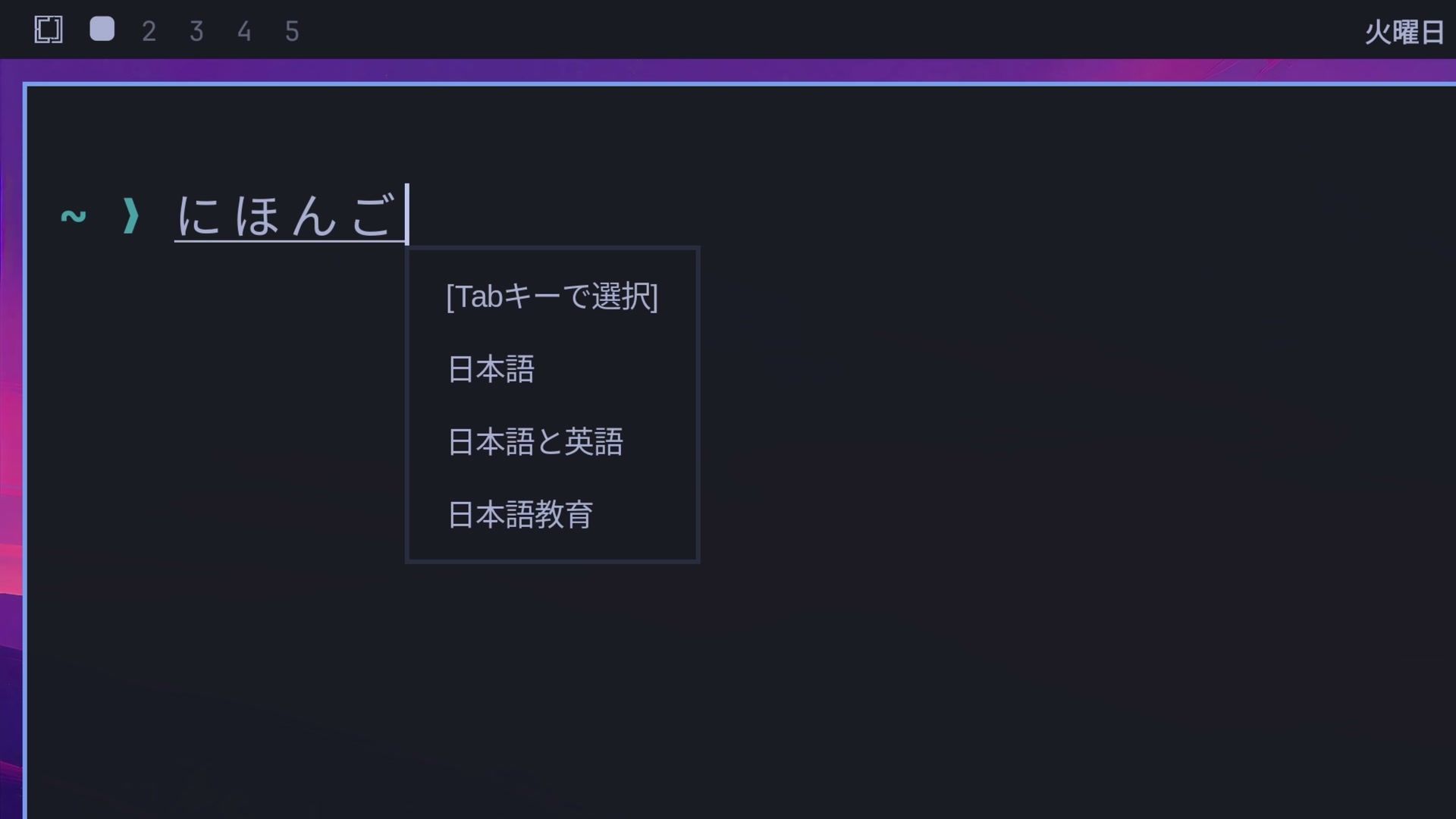
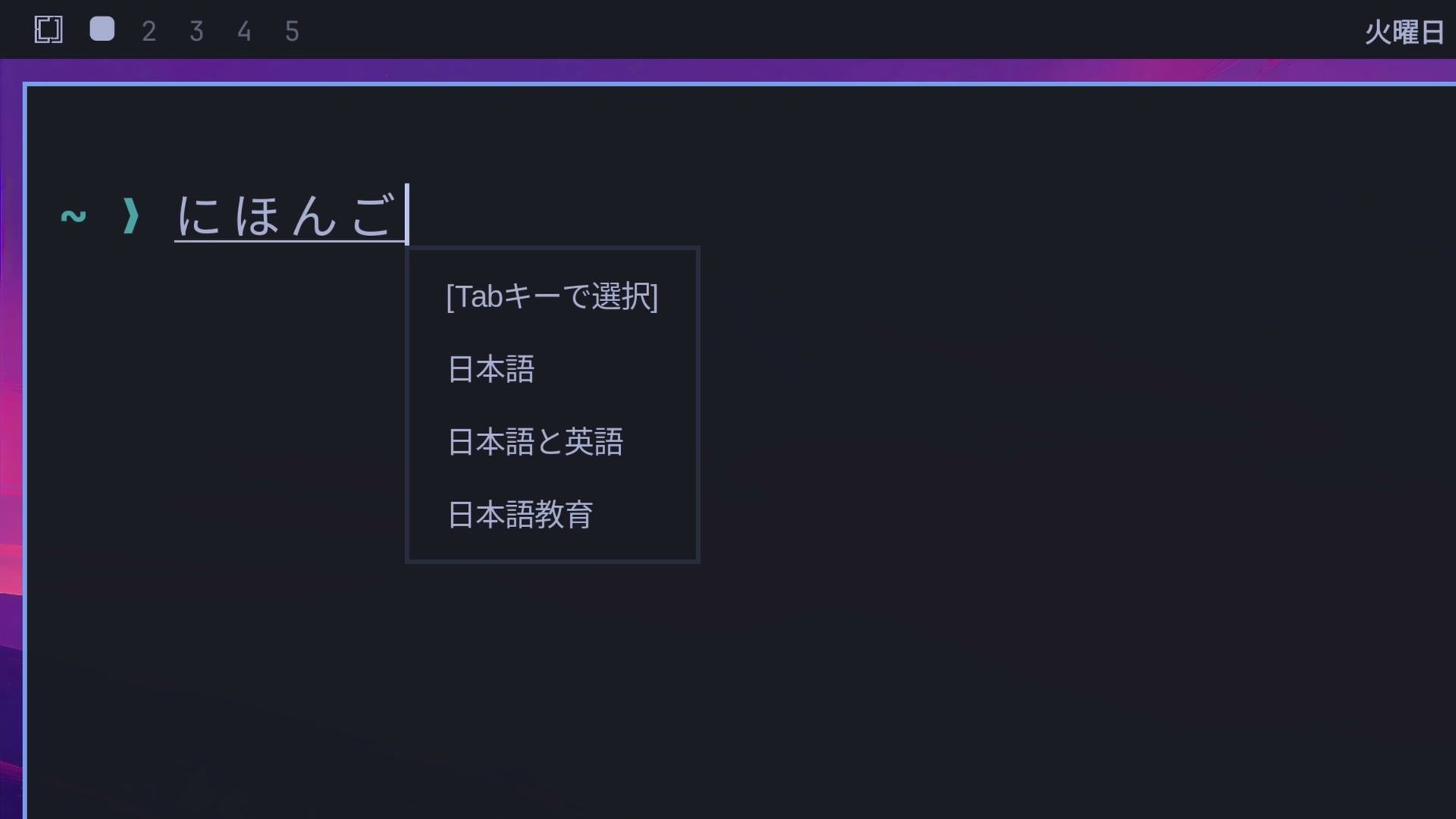
Picking Japanese also sets up Japanese typing with Mozc. super i changes the keyboard’s input mode, and the bar shows あ instead of EN. Type nihongo and it appears in kana, the sound characters, as にほんご; the space bar then turns it into kanji, 日本語. Other input methods, including Chinese and Korean, are under Setup, Typing, Input Methods.
A few ARM laptops are now supported
ARM is the kind of chip in phones and newer Macs. The release notes name two Snapdragon X laptops as examples, the Lenovo Yoga Slim 7x and the ThinkPad T14s (the Gen 6, per Omarchy’s setup scripts), which run on Omarchy’s own ARM kernel. NVIDIA’s N1x chip is supported on the ASUS ProArt P14 and the Dell XPS 16.
On the Snapdragon laptops, the installer copies the graphics and sound firmware from the Windows partition before it writes anything to the disk, so keep Windows on the drive until the install starts. Turn BitLocker off fully first (suspending it is not enough): the installer cannot read the firmware from an encrypted Windows partition, and an install alongside Windows stops on a drive that is still encrypted. Without a Windows partition, the install goes ahead, but graphics acceleration, audio, and battery reporting may not work until you copy that firmware from a Windows driver store from the same laptop model. When the release candidate came out, the developers’ notes on the new ARM installer said they had not yet run a full install from it on a laptop.
Apple Silicon Macs used to need a separate version, Omarchy Mac. Most of that Mac support is now in the main release, and only the part that starts the Mac up stays in the separate Omarchy Mac packages. Macs still install from macOS rather than from a USB stick.
How to try the release candidate
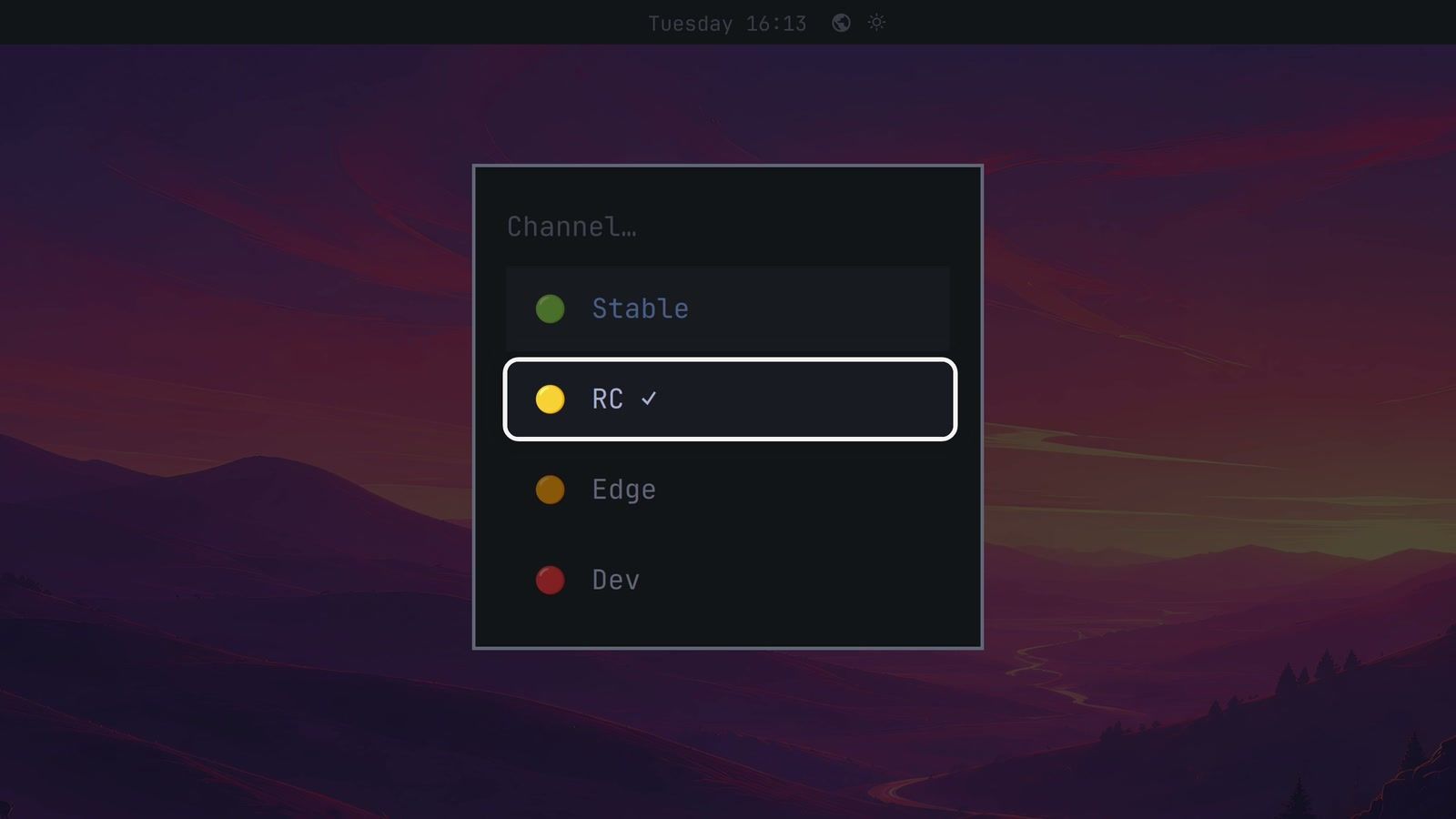
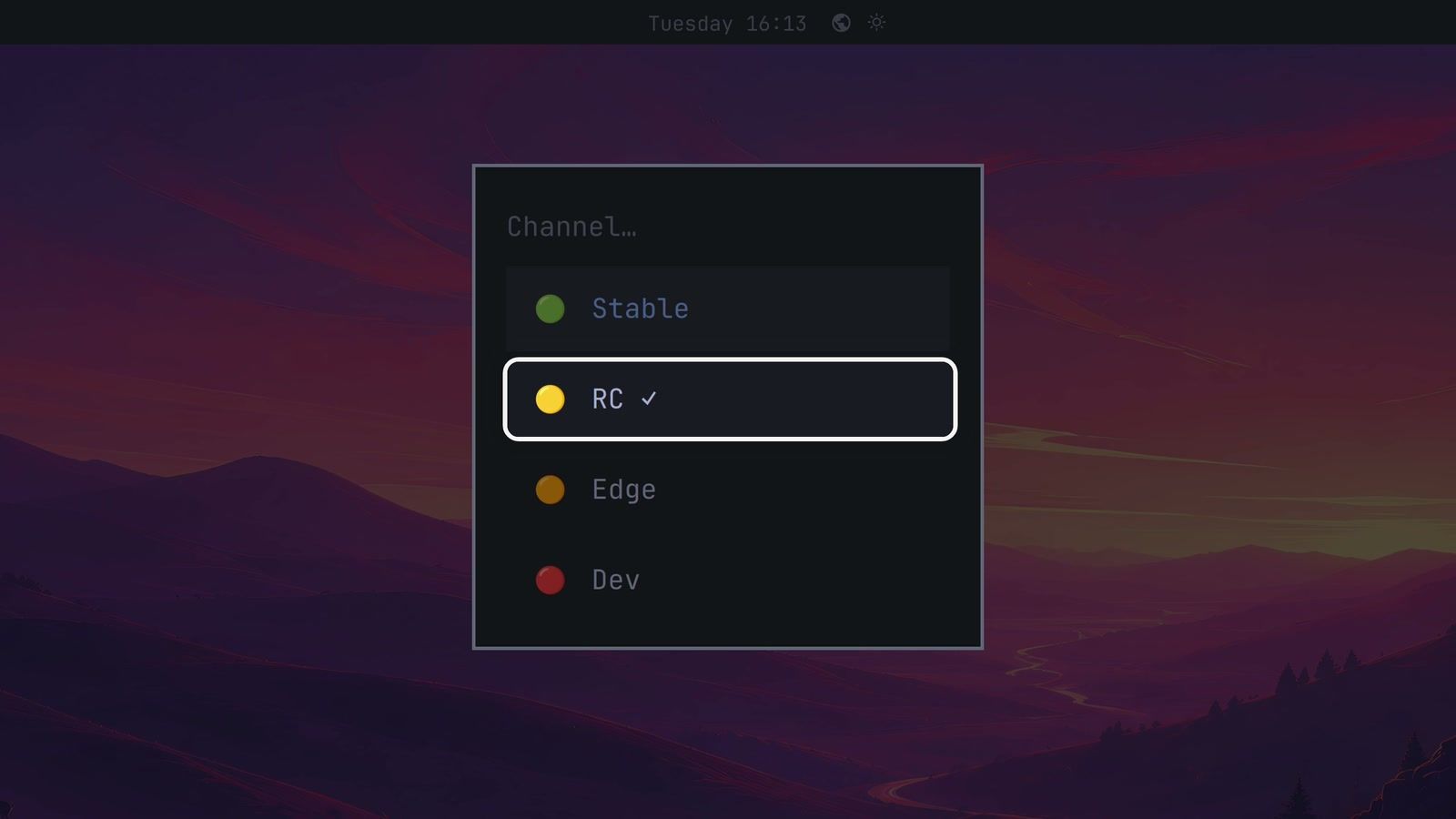
On an Intel or AMD machine that already runs Omarchy, open the Omarchy menu, then Update, Channel. The list has Stable, RC, Edge, and Dev, with a check mark on your current channel. Each row switches as soon as you press enter or click it, with no confirm box (only Dev asks), so press esc if you only want to look. Picking RC switches the channel and starts the full upgrade right away in a terminal window, so plan for a few minutes. ARM machines get the release candidate from the new ARM installer and then update from Edge, since Omarchy has no RC channel for ARM yet. The release notes add a separate Update, Omarchy step, but on RC1 the channel switch runs it for you.
For a new machine, there are two installer images on the release page: one for Intel and AMD PCs and one for ARM. The developers say to expect bugs and rough edges, so use a test machine, or have a backup you know how to restore. A snapshot from before the switch is the simplest way back; our guide to Omarchy snapshots and rollback from the boot menu shows how. To check which version you are on, open About in the Omarchy menu; on the release candidate it shows 4.5.0rc1 and the rc channel. Report problems on the project’s GitHub issues page.
More in the release notes
The release notes list more, including a boot menu wait cut from about six seconds to one and Elsewhen, a world clock next to the clock in the top bar (also on super ctrl alt e ). They also add super q as a second way to close a window, Starship as a new default theme, new web apps for Microsoft Outlook, Word, Excel, PowerPoint, Teams, and OneDrive, and Slack as an install option. Some apps leave new installs: OBS Studio, Kdenlive, and Lazydocker are gone, Antigravity replaces the Gemini coding agent, and Signed replaces Xournal++ for signing PDFs.


